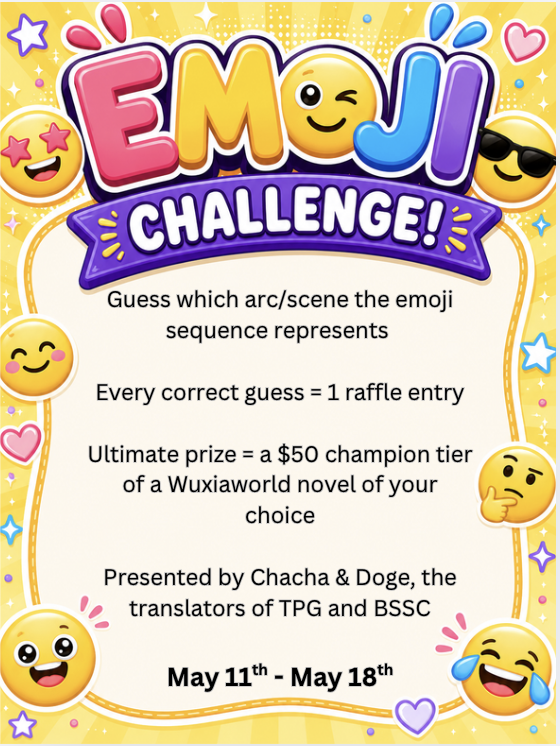
Emoji Challenge!! (By ChaCha and Doge)

Event created by Kun
Hey everyone!
We just wanted to take a moment to say THANK YOU. Seriously, this community wouldn't be what it is without each and every one of you. Your energy, your support, your conversations, it all means the world to us.
So we're giving back. 🎁
Introducing the Emoji Challenge Game!
There will be ten emoji sequences in total. The first five will be from The People's God, and the last five will be from Blind Swordman's Sword Coffin.
Each sequence represents a scene from a specific arc or volume.
Readers reply with their guesses for which scene/arc/volume the emojis represent.
Example: 🗡️⛰️👴💀😭 → "Mountain Elder Sacrificing Himself for MC Arc"
Winner Selection/Announcement
Every correct guess = 1 raffle entry.
Max 10 entries per person.
Winners drawn randomly via random number generator. Announced live in respective discord channel!
There will be five winners in total!
Prizes
Champion Subscription of your choice novel
1st place raffle: $50 tier
2nd place raffle: $20 tier x2
3rd place raffle: $5 tier x2
Event Timeline
11th May: Readers submit guesses (1 week window)
18th May: Submissions close (23:59 GMT+8)
20th May: Live raffle draw and winner announcement (20:00 GMT+8)
Love,
ChaCha and Doge